Tuesday, August 6, 2019

How to Solve Apple TV Won't Update Issues

Q: "I was trying to update the new software on my Apple TV (3rd generation, tvOS 7.1.2), but it didn't work. I've tried to restart the Apple TV as well as my TV, yet it's still not working. Why? Please help me!" – Thomas from Apple Community.

Apple has regularly released new tvOS versions to improve the performance, fix some bugs, etc., so it's necessary to update the Apple TV with new software. However, it is unavoidable that the Apple TV the update was not successful, according to the report from many users. If you're also encountering such problem that your Apple TV won't update, you can follow this guide to learn how to fix it efficiently.

Tip 1. Try to Update Manually Again

If the Apple TV update couldn't be downloaded at this time, you can simply try to update the software again manually. The methods may be a little different depending on the device you have.
For Apple TV 4K and HD, you can go to the Settings > System > Software Updates and choose Update Software. Select the Download and Install option if there is an update. Wait until the update ends.
For Apple TV 3rd generation and earlier, you can go to the Settings > General > Software Updates and pick Update Software option and download and install it if an update is available. Wait for the update to complete.

update again
Note: If you are willing to enjoy the new features of new tvOS, you can simply turn on the automatic update, so that it will help you update your Apple TV automatically to the newest version once there is an update. The method is also simple. Just go to the Settings > System (Apple TV 4K and HD) or General (Apple TV 3rd generation) > Software Updates and turn on the Automatically Update option.

Tip 2. Restart Your Apple TV for Several Times

If it's still not working after manually update again, you can try to reboot your Apple TV for several times since it has become one of the simplest yet effective ways to fix some common iOS or tvOS problems. To restart your Apple TV, there are some quick methods.

Option 1. Restart Apple TV via Settings.

For Apple TV 4K and HD, just go to the Settings > System > Restart. For Apple TV 3rd generation and former, go to the Settings > General > Restart.

Option 2. Restart Apple TV via Remote.

If your remote control are Siri Remote or Apple TV Remote, you can keep pressing the remote home icon Home and Menu buttons. Let them go when you see the light on the box flash. If it is Apple Remote, whether it's white or aluminum, you need to keep pressing the Menu and Down buttons. Don't release them until you see the light on your Apple TV start flashing.

Option 3. Restart Apple TV via Unplugging.

If the two methods above cannot help you restart the Apple TV, you can simply unplug your device from power and then plug it back in after 6 seconds.

Tip 3. Fix Apple TV Won't Update Problem without Data Loss

If you can't update your Apple TV successfully, another easy yet efficient solution is to try a professional tvOS repair tool such as TunesKit iOS System Recovery. This program has a capability of fixing any system problems on Apple TVs, such as Apple TV 2nd generation won't update, Apple TV 3rd generation screen becomes black, Apple TV HD won't charge, no sound, and many others. The most important part of this tool is that it will not causing any data loss while repairing your tvOS system.
What is more, TunesKit iOS System Recovery can also repair all the common or serious iOS issues on iPhone, iPad and iPod touch like stuck in DFU mode, won't turn on, white screen of death, etc. You can also use it to enter or exit the recovery mode in one click, factory reset iOS devices, bypass iTunes errors, downgrade iOS version to previous one, etc.
video cutter

Highlights of TunesKit iOS System Recovery:

  • Fix Apple TV won't update issue with no data loss
  • Fix other various tvOS problems easily
  • Rapair all tvOS/iOS systems in 3 simple steps
  • Compatible with Apple TV HD/3rd/2nd generation
  • Available for both Windows and Mac platforms
900,000+ Downloads
DownloadDownload

Quick Steps to Fix Apple TV Not Update Problem with TunesKit

To utilize TunesKit iOS System Recovery to fix Apple TV update not successful problem, you can first download and install the program on the computer and then follow the step-by-step guide below to get started.

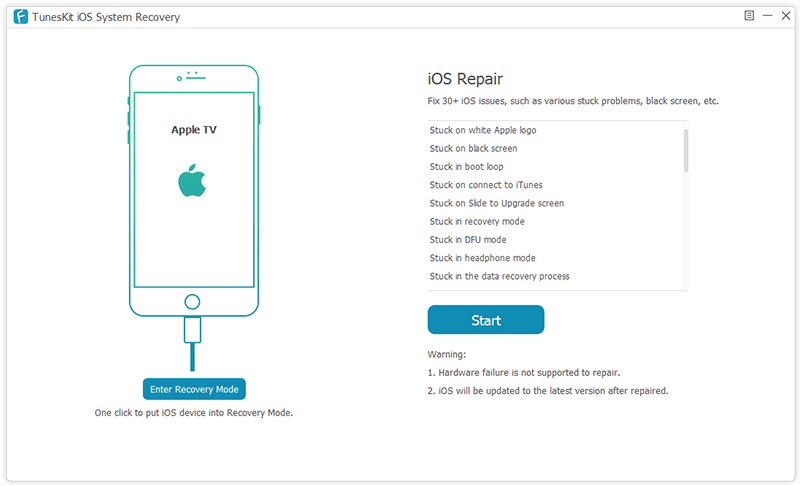
Step 1Launch TunesKit and connect your Apple TV

Open TunesKit iOS System Recovery on the desktop after finished installation and then use an original cable to connect your Apple TV to the computer. Plug it with power cable if necessary.
connect iphone

Step 2Choose repair mode and download firmware package

When your Apple TV is detected by TunesKit, you can simply click the Start button to begin and then choose a recovery mode for repairing. Standard Mode allows you to fix the tvOS problem without data loss while Advanced Mode will erase all the data. Select the Standard one to avoid data loss and press the Next button to proceed.
download firmware
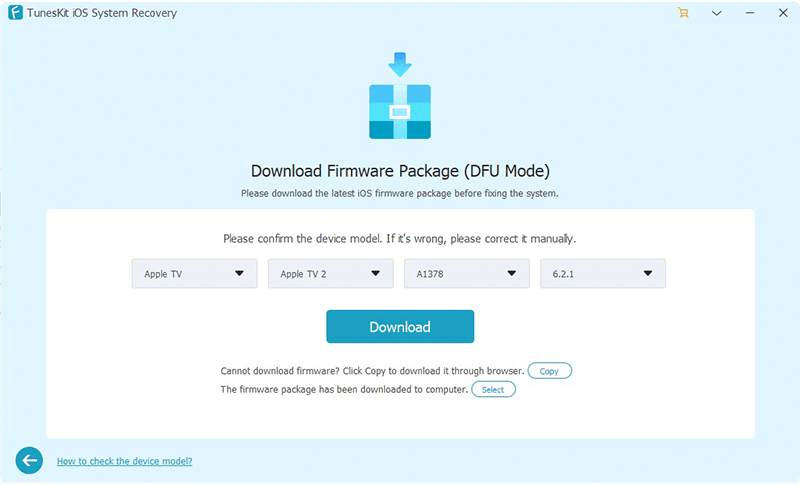
Then confirm your device model info and then click the Download button on the lower right corner to start downloading and verifying the correct firmware package that matched to your Apple TV.

Step 3Start to fix Apple TV won't update without data loss


Once the firmware package is downloaded successfully, you can now click the Repair button to ask TunesKit to fixing the problem immediately. Wait a while until the process completes. Do not unplug your device during the whole process to ensure the problem can be solved.

Source: https://www.tuneskit.com/apple-tv-repair/apple-tv-wont-update.html

Friday, June 14, 2019

[4 Methods] How to Unlock a Disabled iPhone

It is very annoying when you pick up your iPhone only to discover that it is displaying the message "try again in 1 minute". It becomes even annoying when you try inserting your details a few times but it returns "iPhone is disabled." At this point, you begin to question yourself, "What happened?" "Is it disabled forever?" "How can I fix it?"...
If you have experienced this problem with your iPhone, well, the good news is that you are not alone. iPhone Disabled is a common problem, and there are a number of ways that you can enable your iPhone and bring it back to its original status. This guide provides 4 solutions about how to unlock a disabled phone. Before that, let's explore why your iPhone is disabled.
  • Part 1. Why Your iPhone Is Disabled?
  • Part 2. How to Unlock a Disabled iPhone: 4 Methods
  • Part 3. Conclusion & Suggestion

Part 1. Why Do iPhones Get Disabled?


The main reason why iPhones are disabled is because of users entering too many wrong passcodes. In a normal situation, when you enter 5 wrong passcodes to your iPhone continuously, it will be disabled for 1 minute. If you enter 7 incorrect entries continuously it is disabled for 15 minutes, and for 9 incorrect passwords, you have to wait for 60 minutes. For 10 straight incorrect passcode entries, your iPhone gets disabled completely. It will ask you to connect it to your iTunes.
Apple understands that there are situations when you can wrongfully or unintentionally enter wrong passcodes. For instance, if you leave your child with your iPhone he can randomly push the buttons several times, a stranger can try to unlock your iPhone by entering random passcodes repeatedly and it is also possible that you forget your passcode and make several guesses which can all be wrong.

Part 2. How to Unlock a Disabled iPhone


Here are the expert recommendable methods to solve iPhone disabled how to unlock problems:

Method 1 Unlock Disabled iPhone Using iTunes

As long as you have your iPhone synced with iTunes before your phone was disabled, you can use iTunes to reset your locked iPhone. You need earlier trusted computer by your device or synced to recover and extract information from your iPhone. Follow this procedure to unlock your iPhone using iTunes:
unlock disabled iphone using itunes
Step 1. connect your device to the computer with iTunes installed, and it will detect your iPhone in a few seconds;
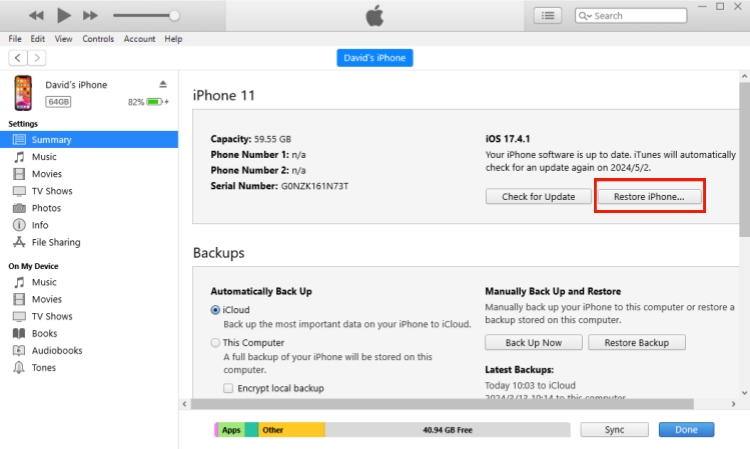
Step 2. Hit your iPhone icon after it recognized your device successfully, and go to the "Summary" > "Restore iPhone";
Step 3. Click the "Restore" again to start restoring your device. Wait until the process ends and your iPhone passcode will be removed.

Method 2 Fix Disabled iPhone Using Recovery Mode

When your device is not synced with iTunes, you should force your iPhone into Recovery Mode, so you can restore it to the factory settings. Your data and passcode will also be deleted. Follow the below procedure to recover your disabled iPhone:
unlock iphone with recovery mode
Step 1. Launch iTunes and update it to the latest version;
Step 2. Conect your iPhone to the computer and follow the Apple guide to put your device into the recovery mode manually or use Joyoshare UltFix to put your phone into recovery mode in one click;
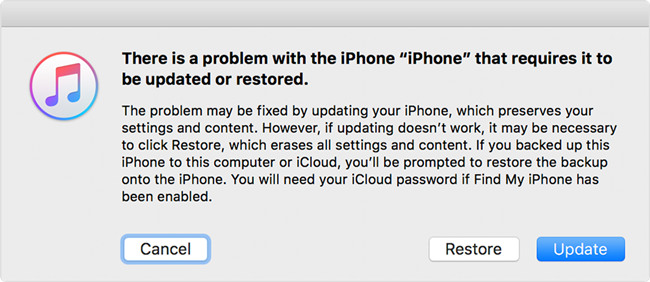
Step 3. When your device is in the recovery mode, iTunes will detect a problem and ask you to "Restore" or "Update" it before using it normally. You can choose the "Restore" button, and it will remove your screen lock when the restoring process is done.

Method 3 Unlock Disabled iPhone Using Find My iPhone

Another method to fix disabled iPhone is to try using Find My iPhone feature as long as you have enabled this option. Here are the steps to follow to unlock your device:
unlock iphone using find my iphone
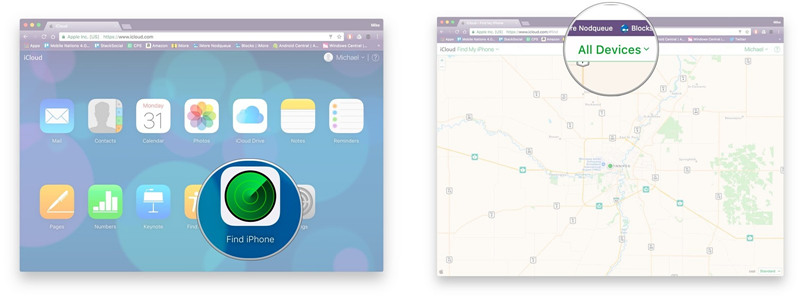
Step 1. Use a computer or another device and move to iCloud website (www.icloud.com);
Step 2. At the top of the browser window, click "All Devices". Select the device that you need to erase.
Step 3. Click "Erase iPhone" button, this will delete the device password and wide the device clean.
Step 4 (Optional). You can now restore device from a recent backup. To find your backups, go to iCloud contacts, photos, etc., before setting up as new iPhone.

Method 4 Fix Disabled iPhone Using Joyoshare iPasscode Unlocker

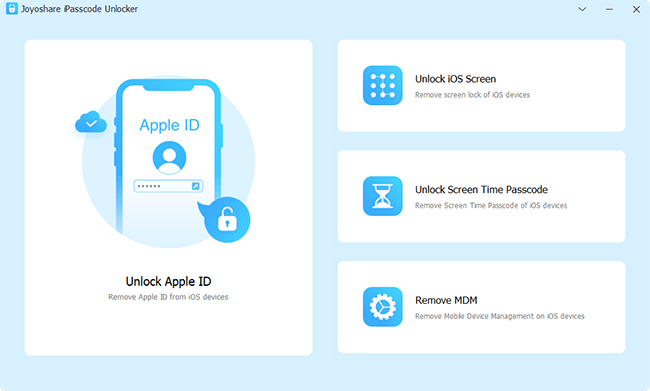
When the above methods do not work or when the methods are not suitable for your case, you need to use a professional iPhone passcode unlock tool. Joyoshare iPasscode Unlocker is the best solution to help you unlock your disabled iPhone. It gives you an easy and seamless solution to bypass iPhone passcodes. This tool offers you a lot more than unlocking your disabled iPhone including retrieving a forgotten password, broken screen solution, and locked second-hand iPhone solutions and many more.
Joyoshare has an intuitive and user-friendly interface, bringing a completely new and easy way to bypass the iPhone passcode. Most importantly, this tool allows you to clear four different kinds of passcodes: the 4-digit passcode, 6-digit passcodes, Face ID and Touch ID. You can now download either Windows or Mac version of this tool and follow these simple steps to unlock your iPhone:

Step 1. Install and launch Joyoshare on your computer. Press on the "Start" button to enable your iPhone to begin.
joyoshare ipasscode unlocker win
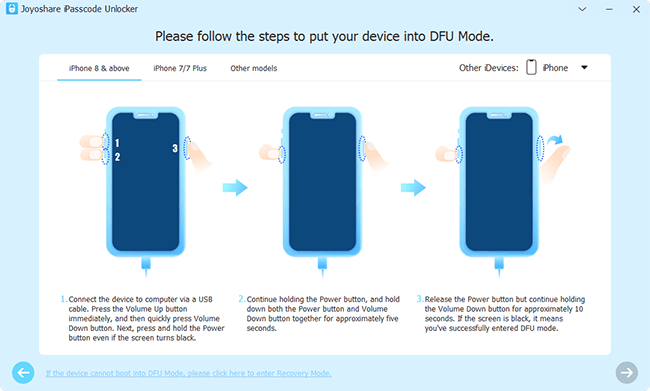
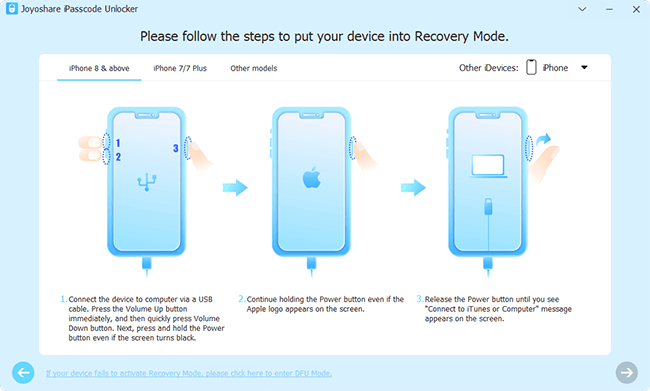
Step 2. Follow the instruction guide on the interface to get your device into Recovery Mode or DFU. If the mode you chose does not work, you can switch to another mode to have a try. Switch between the modes using the link at the bottom.
put iphone into DFU mode win
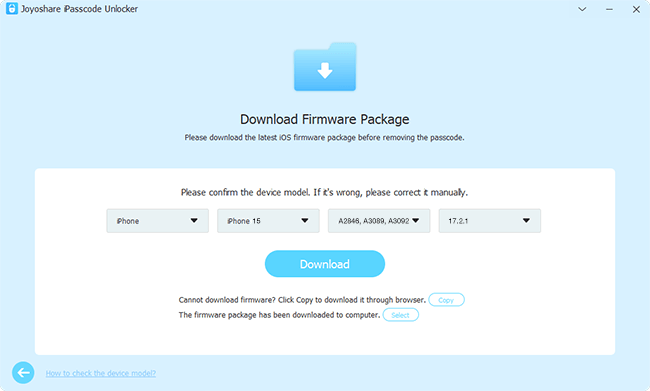
Step 3. Download the firmware and verify it. Once you are in DFU or recovery mode, you will be able to view all the listed devices. Use the drop-down list to connect manually after confirming the correct firmware is being used. Click the download button and the firmware will begin to download.
download firmware package
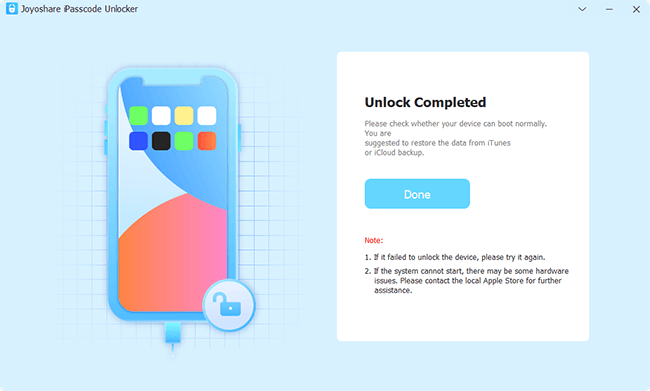
Step 4. It is time to remove the passcode and unlock your iPhone. Once the firmware downloaded, click the "Unlock" button to begin unzipping the firmware and start the unlock process. Ensure the iPhone is connected all this time. The Joyoshare software will automatically begin the process and unlock your iPhone.
unlock disabled iPhone with joyoshare

Part 3. Conclusion and Extra Tips

Your iPhone could be problematic at times especially when you're doing an update to a new version, when jailbreaking or when the battery has some problems. Most of these problems can be solved using our suggested methods above. The Joyoshare iPasscode Unlocker especially helps you solve the problem with much ease about how to unlock iPhone when it is disabled. We hope one of our solutions worked for you and you can now peacefully use your iPhone once more.


Source: https://www.joyoshare.com/unlock-iphone-passcode/iphone-is-disabled-how-to-unlock.html

Wednesday, June 5, 2019

iPhone Screen Broken? How to Unlock Passcode

Q: "Last night my son was playing games on my iPhone 6 and it fell down to the floor accidentally. Sadly the screen was broken. The phone seemed to be alive but I couldn't enter the passcode to unlock the screen. How can I get into an iPhone with a broken screen? Thanks a lot." - Sara from Apple Discussion Forum


It must be annoying when your iPhone screen is cracked, what is more frustrated is that, you can't even enter your screen passcode in order to access it. Don't be despondent now. In this article, we'll cover 4 possible solutions to help you unlock an iPhone passcode when your broken is broken, cracked or unresponsive.
  • Solution 1. Unlock Broken Screen iPhone without Passcode [100% Working]
  • Solution 2. Unlock Broken Screen iPhone with iTunes
  • Solution 3. Unlock Broken Screen iPhone with iCloud
  • Solution 4. Get into a Broken Screen iPhone using Siri

Part 1. How to Unlock iPhone with Broken Screen Using iPasscode Unlocker

To fix iPhone screen broken can't unlock problem, you can simply use a professional iOS unlock tool to do the job. Joyoshare iPasscode Unlocker can easily unlock iPhone passcode when the touch screen is broken and unresponsive. It uses a very simple method to bypass the screen lock and help you get into your broken screen iPhone within a few minutes. Plus, it will not ask any password or prompt during the unlocking problem, no restriction at all.
No matter your screen passcode is a 4-digit or 6-digit numeric one, or more complicated Touch ID, Face ID, Joyoshare iPasscode Unlocker can remove the screen lock in a few clicks. Besides, this program is fully compatible with almost all iOS devices and systems, ranging from the oldest iPhone 4s to the newest iPhone XR, XS or iPad Pro and iOS 12.

Key Features of Joyoshare iPasscode Unlocker:

Unlock iPhone without passcode on a broken screen
Remove screen lock easily and instantly
Crack different kinds of screen passwords
Support all iOS devices including iPhone, iPad and iPod touch
joyoshare ipasscode unlocker win
Now let's move to the detailed instruction on how to unlock iPhone with unresponsive screen by using Joyoshare iPasscode Unlocker.

Step 1 Open Joyoshare and connect broken screen iPhone

connect iphone win
At first, you can download and install Joyoshare iPasscode Unlocker on your PC or Mac. Use an original USB cable to connect your iPhone to the computer. Open Joyoshare and it will detect your device. Click the "Start" button to begin.

Step 2 Put iPhone into DFU or recovery mode (Optional)

put iphone into DFU mode win
Follow the instruction on the interface to boot your broken iPhone to the DFU or recovery mode manually. If it failed, you can freely use Joyoshare UltFix to help your device enter the recovery mode in one click. Then hit the "Next" button to proceed.

Step 3 Download firmware package and verify

download and verify firmware package win
Once your device is in the recovery mode or DFU mode, you can check the device info and correct it if there is anything wrong. Afterwards, press on the "Download" button to download and verify the firmware package.

Step 4 Unlock broken screen iPhone passcode

unlock iphone without passcode win
Wait until the download is completed, and then you can click the "Unlock" button to start unzipping the firmware package and unlocking your iPhone. Once it's done, you can get access to your iPhone again.
Note: Using Joyoshare iPasscode Unlocker to unlock broken screen iPhone will wipe all the data and settings on your device, and the iOS will be updated to the latest version. You can now recover your data by restoring an iTunes or iCloud backup.

Part 2. How to Restore Broken Screen iPhone via iTunes

Another method to bypass iPhone screen lock is to use iTunes to restore your device as long as you have ever synced it to a computer and trust this computer. Here is how: If you have once synced your device to the trusted computer via iTunes, you're probably going to try unlocking iPhone XR/XS (Max) with iTunes. Just go to open iTunes and connect your iPhone to the computer. Simply hit the device icon after it detects your iPhone and navigate to the "Summary" > "Restore iPhone...". Confirm the "Restore" option to factory reset your device. Your passcode will be removed then.
restore from itunes
Step 1. Launch the latest version of iTunes and connect your device to the synced computer;
Step 2. After iTunes recognized your iPhone, hit the device icon and then go to the "Summary" > "Restore iPhone...";
Step 3. Click the "Restore" button again and reset your device to the factory settings. When the process finishes, all your data will be effaced and your iPhone can work normally.

Part 3. How to Remotely Erase iPhone with Broken Screen via iCloud

Once you have enabled "Find My iPhone" feature on iCloud, you can also try to unlock iPhone with cracked screen through this solution. The following are quick steps:
restore from icloud
Step 1. Enter wwww.icloud.com on the browser of your computer or iPad. Log into iCloud account with your Apple ID and password;
Step 2. Click the "Find iPhone" button and select your iPhone under the list of "All Devices";
Step 3. Choose the "Erase iPhone" option to erase all content and screen passcode remotely.

Part 4. How to Get into Broken Screen iPhone via Siri

When your iPhone screen is broken and unresponsive, you can also use Siri feature to get access to it. Yet, it will not always work for all iPhone users, according to the report from many customers. You can still give it a try, what if you're the lucky one?
Step 1. Press and hold the Home button to activate Siri (If it failed, you can turn to other methods, especially the first one);
Step 2. Ask Siri to "Turn on VoiceOver", and then press the Home key to go to the main unlock screen;
Step 3. Swipe left or right until "Slide to Unlock" option is selected, and then double tap. Now the password page appears;
Step 4. Swipe left or right to highlight the correct keys on the keyboard and double hit to "enter" each one;
Step 5. Swipe to highlight enter or done and double hit to submit the password.

Conclusion & Suggestion

The above are all possible solutions to unlock iPhone passcode when your iPhone is broken and unresponsive due to system issue. The first three methods will erase all your data while the last one will not, but it is somewhat complicated and not 100% workable. We suggest you to try Joyoshare iPasscode Unlocker to unlock iPhone with broken screen because it's easy to operate and have a high success rate. However, if your iPhone screen broken can't unlock issue is caused by some hardware malfunction, you'd better take it to the offline Apple Store or professional repair store. Don't repair it by yourself, or you may damage it.

Tuesday, May 28, 2019

Solved: Bypass iPhone 6 Passcode Without Siri

Q: "My iPhone 6 was disabled because I forgot its password and entered the wrong one for many times. My friend told me that I could trick Siri to bypass the passcode. I tried, but it didn't work. Is there any other ways to unlock iPhone 6 passcode without Siri? Please help me." - Malisa
Using Siri bug can be a possible method to remove the screen lock on iPhone 6. It's easy to operate and will not erase the data on the device. However, this solution is not always effective and many users have reported that they failed to bypass their iPhone passcode with Siri, just like Malisa. Thus, you can read this post and get to know how to bypass iPhone 6 passcode without Siri efficiently.

Part 1. How to Bypass iPhone 6 Passcode Without Siri by Using iPasscode Unlocker

If tricking Siri is not workable on your iPhone 6, you can ask a third-party professional iPhone password removal named Joyoshare iPasscode Unlocker for help. It is an efficient utility to unlock all iOS device lock screens including iPhone, iPad and iPod touch with a high success rate.
Whether your iPhone 6 or other devices are locked due to forgotten passcode, broken screen or disabled iPhone, Joyoshare iPasscode Unlocker can easily handle it with a few steps only. Besides, you can use this powerful program to unlock different kinds of screen passwords no matter it is simple numerical 4-digit or 6-digit passcode or more complicated Touch ID and Face ID.

Highlights of Joyoshare iPasscode Unlocker:

Unlock iPhone 6 passcode without Siri
Remove 4 types of iOS screen passcodes and more
Bypass locked, disabled and broken screens
Compatible with all iOS devices and systems (including iOS 12)
joyoshare ipasscode unlocker win
Next it's time to show you how to bypass iPhone 6 passcode without Siri with Joyoshare iPasscode Unlocker. Before we get started, you must be aware that it will erase all the data on your device after your passcode is unlocked. You can recover the data by restoring a backup. Now let's go on.

Step 1 Launch Joyoshare and connect your iPhone 6 to computer

connect ios device win
After downloaded and installed Joyoshare iPasscode Unlocker on your PC or Mac, you can simply open it. Then connect your iPhone 6 to the computer with an original USB cord. Afterward, just click the "Start" button on the main interface to begin.

Step 2 Boot device into DFU or recovery mode

put iphone into DFU mode win
Now you need to put your iPhone 6 into DFU mode manually: Press and hold the Power and Home buttons simultaneously for 10 seconds; Release the Power button and keep holding the Home button for 5 seconds. Then you can click the "Next" button to proceed.
put iphone into recovery mode win
Note: If you failed to boot it into DFU mode, you can switch to put it into the recovery mode: Press and hold the Power and Home buttons simultaneously until you see the Apple logo; keep holding these two buttons until you see the iTunes logo. Then you can click the "Next" button to proceed.

Step 3 Download and verify firmware package

download and verify firmware package win
When your iPhone 6 successfully entered the DFU or recovery mode, Joyoshare iPasscode Unlocker will show you all device info. Check the information and correct it if something is wrong. Then press the "Download" button to download and verify the firmware package.

Step 4 Begin to unlock iPhone 6 passcode

unlock iphone without passcode win
Now be patient and wait until the download is finished. After that, you can click the "Unlock" button to bypass iPhone 6 passcode without Siri. When the unlocking process completes, your iPhone 6 passcode is removed then.

Part 2. How to Bypass iPhone 6 Passcode Without Siri via iTunes

To avoid using Siri, another way is to use iTunes to restore your iPhone 6 device as long as you've once synced the device with iTunes. Likewise, this method will also efface all the data. Here is how:
Step 1. Launch iTunes and connect your iPhone 6 to a synced computer. If it needs you to "Trust This Computer" by entering the passcode, try another computer you've synced with;
Step 2. After iTunes detected your iPhone 6, hit your device icon and go to the "Summary" > "Restore iPhone";
Step 3. Confirm the "Restore" option again and wait until the process is done. Now your passcode is unlocked and you can restore from a backup if necessary.
restore from itunes

Part 3. How to Bypass iPhone 6 Passcode Without Siri via Recovery Mode

Possibly, you can also put your iPhone 6 into the recovery mode and then use iTunes to restore your device and remove iPhone 6 passcode as well. Similarly, this method will also wipe off all your data. It will take only 3 steps to achieve it:
Step 1. Open iTunes and connect your iPhone 6 to a computer;
Step 2. Manually put your iPhone 6 into the recovery mode: Press and hold Power and Home buttons at the same time until a White Apple logo appears; keep holding the two buttons until the Connect to iTunes icon appears on the screen. Your iPhone 6 is in the recovery mode now;
Step 3. Then a message will appear and ask you to "Restore" or "Update" your device before using it. Click the "Restore" button and wait until the restoration ends. Your passcode is removed now.
unlock iphone without passcode in recovery mode

Part 4. How to Bypass iPhone 6 Passcode Without Siri via iCloud

Once you've enabled "Find My iPhone" feature on your iPhone 6 and you still remember your iCloud username and passcode, you can then try this method to bypass iPhone 6 passcode without Siri or computer or iTunes. The following is the quick steps:
Step 1. Visit www.icloud.com/find on the browser of your iPad (or your friend's iPhone, or your computer). Log in your iCloud account after entering the right Apple ID and passcode;
Step 2. Choose your iPhone 6 under the "All Devices" option;
Step 3. Then press the "Erase iPhone" button to efface all the data and settings as well as your screen passcode remotely. Once the process is finished, your iPhone 6 passcode is removed.

Source: https://www.joyoshare.com/unlock-iphone-passcode/how-to-bypass-iphone-6-passcode-without-siri.html

Wednesday, May 22, 2019

5 Ways to Unlock iPhone without Passcode/Password

Forgot the passcode for an iPhone that hasn't been used for a period of time? Your kid has disabled your iPhone for typing in the wrong password for many times? Or you can't enter the code on your phone due to a broken screen and after change the screen, it still failed?
Have you ever encountered such situations? If so, don't be despondent. In this article, we will show you 5 ways to unlock iPhone without passcode, and you can try any one to bypass screen lock with no need to enter the passcode.

Part 1. How to Unlock iPhone Without Passcode with a 3rd-Party iOS Unlock Tool

Among several methods to unlock iPhone without passcode, using a third-party iOS unlock tool such as Joyoshare iPasscode Unlocker can be the most effective one. It is a smart professional unlock tool, specially designed to remove screen lock from various iOS devices including iPhone, iPad and iPod touch.
Joyoshare iPasscode Unlocker has an intuitive interface and everyone can operate it very easily. With the support of 4 types of passwords, you can easily bypass 4-digit or 6-digit screen passcode, or even Touch ID and Face ID, no matter how your iPhone is locked. Forgotten password, disabled or broken iPhone, a second-hand iPad, etc, all these locked iDevices can be cracked in a few clicks only.

Key Features of Joyoshare iPasscode Unlocker:

Quickly unlock iPhone without passcode
Bypass all types of iPhone passcodes
Unlock iPhone passcode from every possible scenorios
Remove iPhone lock screen with highest success rate
joyoshare ipasscode unlocker win
 
Next let's move to the detailed guide on how to unlock iPhone without passcode by using Joyoshare iPasscode Unlocker. The program supports both Windows and Mac systems, here we take Windows version as an example.

Step 1 Open Joyoshare and connect iPhone to the computer

connect ios device win
At first, launch Joyoshare iPasscode Unlocker on your PC and then use a original USB cable to connect your iPhone or other iOS device to the computer. Click the "Start" button when your device is recognized by Joyoshare.

Step 2 Put iPhone into DFU/Recovery Mode

put iphone into DFU mode win
Next you need to boot your iPhone/iPad into DFU mode, just follow the instruction on the screen to do it. If it failed, you can try to enter Recovery mode as instructed.

Step 3 Download and verify firmware package

download and verify firmware package win
Once your device is in DFU or Recovery mode, Joyoshare will display all info about device in detail. Confirm iOS information and correct it manually if there is something wrong. Next click the "Download" button to download and verify the firmware package.

Step 4 Start to unlock iPhone without passcode

unlock iphone without passcode win
Wait a while until the download and verification is completed. Then click the "Unlock" button to start unzipping the firmware and unlocking the passcode. Once the unlocking progress bar ends, your iPhone passcode is removed successfully.
Note: By unlocking iPhone passcode, all the data on your device will also be removed completely.

Part 2. How to Unlock iPhone Without Passcode by using iTunes

The second method to solve disabled iPhone or forgotten password problem is to use iTunes on the premise that you've synced with iTunes. But be aware that this will erase all the data and its password as well. If you don't mind, just follow the quick steps below:
Step 1. Open iTunes and connect iPhone or iPad to the computer you've synced with. If it asks for a password, try another computer that you've synced with;
Step 2. Wait unitl iTunes has finished syncing your device, and then click on "Restore [your device]" ;
Step 3. When the restoration is done, all the data along with passcode have been erased. Now you can reset your iPhone, and choose to restore from iTunes backup if needed.
restore from itunes

Part 3. How to Unlock iPhone Without Passcode with Recovery Mode

If you've never synced with iTunes, you can use recovery mode to restore your iOS device. Likewise, it will also efface all the data on the device along with the passcode. Here is how to unlock iPhone without passcode and iTunes step by step:
Step 1. Launch iTunes and connect your device to the computer;
Step 2. Put your iPhone into recovery mode (if you don't know how, you can follow the instruction from Apple Support);
Step 3. Click the "Restore" button when you see the options "Restore" or "Update". After the process is finished, your device is unlocked and next you can set up your device.
unlock iphone without passcode in recovery mode

Part 4. How to Unlock iPhone Without Passcode via Find My iPhone

Another solution to unlock iPhone without passcode is to use Find My iPhone feature on iCloud.com as long as you have turned on "Find My iPhone" on your device, which will erase all the data on your iPhone as well as its passcode. It will take a few clicks to complete it:
Step 1. Please visit icloud.com/find on the browser of your computer. Enter your Apple ID and passcode to sign in iCloud account;
Step 2. Select the option "Find iPhone" and then pick the one you want to erase from a list of devices;
Step 3. Next click the "Erase iPhone" option and wait for the process to finish, then all data and its password will be removed.
unlock iphone without passcode using find my iphone

Part 5. How to Unlock iPhone Without Passcode by Tracking Siri

The last way to regain access to iPhone Home screen without passcode is to use Siri, but it cannot guarantee a 100% success rate. If the aforementioned methods are not working, you can try this as below:
Step 1. Press and hold the Home button to activate the Siri on your device;
Step 2. Ask Siri what time is it. Click on the clock image when Siri displays the time. This will bring up the World Clock/Alarm/Stopwatch/Timer screen, click on the timer option > "When timer ends";
Step 3. Scroll to the top of the list and choose "Buy More Tones", which should open the Apple Store;
Step 4. Press on the Home button again and it will bring you to the main screen with full access to the phone.
Source page: https://www.joyoshare.com/unlock-iphone-passcode/how-to-unlock-iphone-without-passcode.html

Thursday, April 11, 2019

How to Restore Data from iCloud Backup without Resetting

If you have ever reset your iPhone and then restore from iCloud backup file, you may find that this method may result in some data loss. Besides, you cannot preview the backup and may restore one that doesn't contain the missing data. In addition, if your backup file is large, it will take a lot of time for you to complete the restoration. Thus, to avoid these problems and to answer the question as title, we will introduce you 2 easy methods to restore from iCloud backup without reset. Just read on.

Part 1. How to Restore Data from iCloud Backup without Resetting

Without setting your device as a new iPhone, you can still restore from iCloud backup easily, what you need then is a trustworthy and powerful iCloud backup extractor - Joyoshare iPhone Data Recovery (or for Mac).
This is the best iOS data recovery utility that can not only recover data from iOS device without backup, but also extract data from iTunes and iCloud backup files. The comprehensive solution supports over 20+ types of lost data files including call history, voicemail, iMessages, notes, calendars, and third-party app data, etc. It provides you real-time preview function and selective recovery, and will never overwrite the existing data on the iPhone.

Key Features of Joyoshare iCloud Backup Extractor:

Restore data from iCloud backup without reset
Recover up to 20+ types of lost data
Save your data from every data loss disaster
Support different models of iDevices (iOS 12 supported)
joyoshare iphone data recovery win
Now let's see the step-by-step guide on how to restore iPhone from iCloud without resetting with Joyoshare iPhone Data Recovery. At first, go to the download page of Joyoshare and choose iPhone Data Recovery to download and install on your computer.

Step 1 Launch Joyoshare and sign in iCloud

recover from icloud win
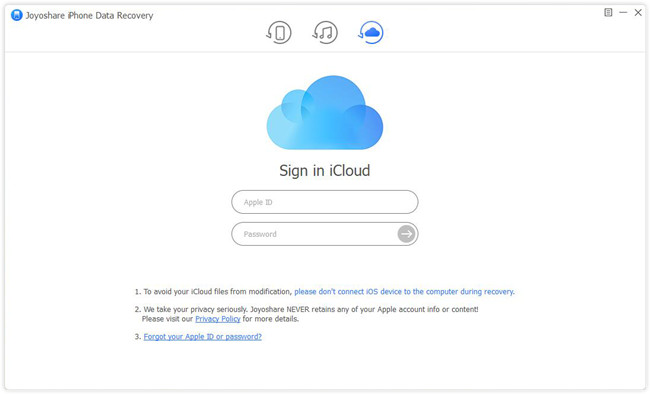
Launch Joyoshare software after installation and then select the third recovery mode from the top menu bar - "Recover from iCloud". Log into your iCloud account with correct Apple ID and passcode as required. Don't worry. Joyoshare will never record any personal info and content here.

Step 2 Extract iCloud backup and start to scan

download icloud backup files
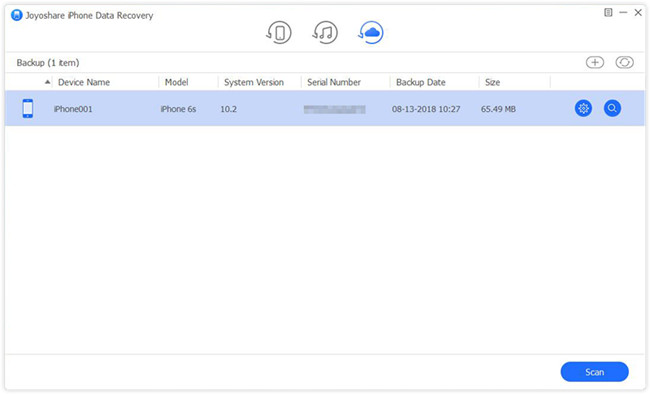
After entered iCloud account successfully, you'll see all iCloud backup files listed here. Choose the most relevant one and press the "Download" button. Once the download is done, you're freely to select data types for scanning such as Messages & Attachments, Contacts, Photos, WhatsApp & Attachments, etc. After that, click the "Scan" button to let Joyoshare scan the lost data from iCloud.

Step 3 Restore from iCloud backup

restore data from icloud
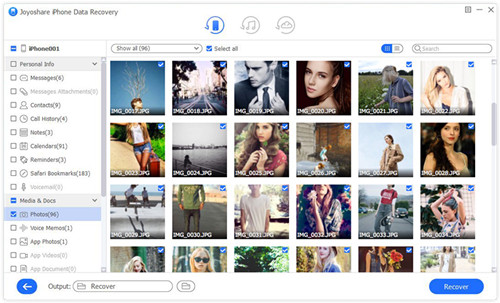
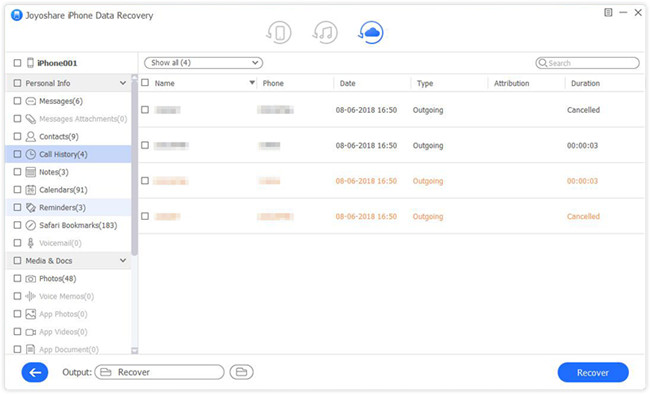
Wait a while until the scanning process comes to an end. Now you're able to preview all recoverable files. You can also search for a specific one by entering a keyword, or filter out "Only show the deleted" items. Then press the "Recover" button and restore all data to your computer.

Part 2. How to Restore Data from iCloud.com Directly

The other easy way to get lost files from iCloud is to directly download data through iCloud.com. But it may only restore some of the deleted files such as contacts, calendars, photos, notes, etc., other data like WhatsApp attachments, iMessages, memos, etc. cannot be retrieved. Also, all the files will be kept for only 30 days. But it's still worth a try.
restore from icloud.com

Step 1: Open your computer and enter www.icloud.com on the browser. Enter your username and password to sign in iCloud account.
Step 2: Now you can see all the specific files like Contacts, Calendars, Photos, Notes, Reminders, Bookmarks etc. after access to iCloud. You can click on the ones you'd like to recover and finish the restoring process as required.